Access MVP (2010-2015)

oOo.oOo.oOo.oOo.oOo.oOo

Combo Box to Find Records…

You want your Users to be able to look up and/or add new activities for existing Companies but they may not know or remember the Company Name but they do remember the person they speak to on a daily basis.  Well, you don’t want to add a separate Combo Box for Company Name, First Name, etc.  Depending on how many fields you want to use putting that many Combo Boxes on a Form can get a bit crowded.   In this example, you will only need two Combo Boxes on your Main form…
frmComboBox

Step 1

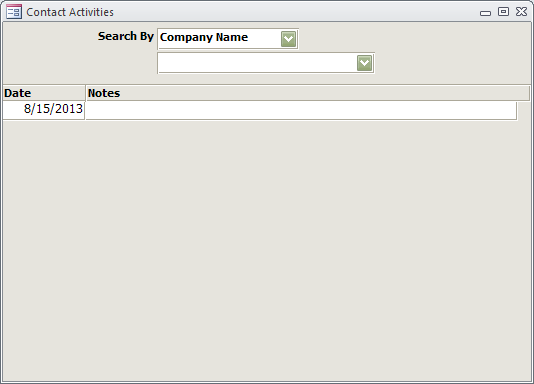
On your Main Form add two Combo Boxes.  In my example, I named them cboSearch (top one)  and cboResults (bottom one).   For your Subform use the table that holds the Activities for your Contacts.  (Note:  You can also use this set up to search for Vendor Products, Service Calls, Work Orders, and so on.)

cboSearch
In the Properties window…

On the Data tab…
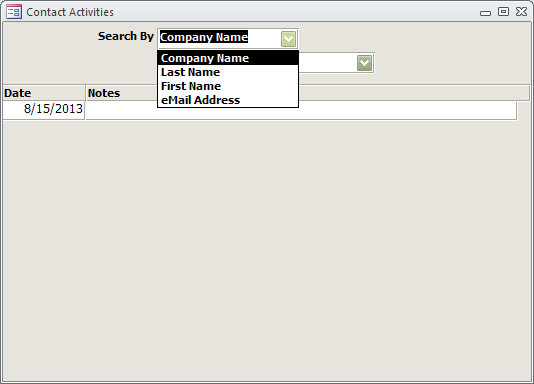
Row Source = 1;Company Name;2;Last Name;3;First Name;4;eMail Address
Row Source Type = Value List
Bound Column = 1

On the Format tab…
Column Count = 2
Column Widths = 0″;1″
ComboBox

cboResults
In the Properties window…

On the Data tab…
Row Source = Leave Blank
Row Source Type = Table/Query
Bound Column = 1

On the Format tab…
Column Count = 2
Column Widths = 0″;1″

Step 2

Create a Query for each Value you want to search by.  (Be sure to to put Is Not Null on the Criteria line of the Company, First Name, etc. so you don’t get blanks in your Combo Box.)  For this example…

qrySearchCompany
qrySearchFirstName
qrySearchLastName
qrySearcheMailAddress

Note:  The only thing that is constant throughout the Queries is first field must be the key you are going to link the Main Form and Subform together on.  For example, we care using the cContactID, so the Query for qrySearchCompany would be…

SELECT tblContacts.cContactID, tblContacts.cCompany
FROM tblContacts
WHERE (((tblContacts.cCompany) Is Not Null));

Step 3

In the After_Update event of cboSearch copy/paste the below (providing you used the same names.  If not adjust accordingly)

Select Case cboSearch
Case 1
Me.cboResults.RowSource = “qrySearchCompany”
Me.cboResults = “”
Me.sfrActivities.LinkMasterFields = “cboResults”
Me.sfrActivities.LinkChildFields = “aContactID”
Case 2
Me.cboResults.RowSource = “qrySearchLastName”
Me.cboResults = “”
Me.sfrActivities.LinkMasterFields = “cboResults”
Me.sfrActivities.LinkChildFields = “aContactID”
Case 3
Me.cboResults.RowSource = “qrySearchFirstName”
Me.cboResults = “”
Me.sfrActivities.LinkMasterFields = “cboResults”
Me.sfrActivities.LinkChildFields = “aContactID”
Case 4
Me.cboResults.RowSource = “qrySearcheMailAddress”
Me.cboResults = “”
Me.sfrActivities.LinkMasterFields = “cboResults”
Me.sfrActivities.LinkChildFields = “aContactID”
Case Else
Me.cboResults.RowSource = “”
Me.cboResults = “”
Me.sfrActivities.LinkMasterFields = “”
Me.sfrActivities.LinkChildFields = “”
End Select

All done… Enjoy!

You can download a sample here.

Loading

Navigate a Continuous Form like Excel…

Continuous forms allow you to display data resembling an Excel spreadsheet.  However, you can’t navigate a Continuous form like you do an Excel spreadsheet (much to your Users dismay), well, that is, not until now…

In your modUtilities copy/paste the below (If you don’t have a modUtilities create one.  It’s a place to keep all your resusable code!)

Sub NavigateRecords(KeyCode As Integer)
On Error GoTo Err_handle

   Select Case KeyCode
     Case 38 '--Up Arrow--
       DoCmd.GoToRecord , , acPrevious
     Case 40 '--Down Arrow--
       DoCmd.GoToRecord , , acNext
   End Select
Exit Sub

Err_handle:
Beep

End Sub

In Design Mode of the Continuous form, on the KeyDown event of *each* control put Call NavigateRecords(KeyCode), see example below…

Private Sub cboActionID_KeyDown(KeyCode As Integer, Shift As Integer)
Call NavigateRecords(KeyCode)
End Sub

Go to Form View and now you can use the Arrow Keys on your keyboard to navigate your Form.

Loading

Saving changes is not permitted (SQL Server tables)…

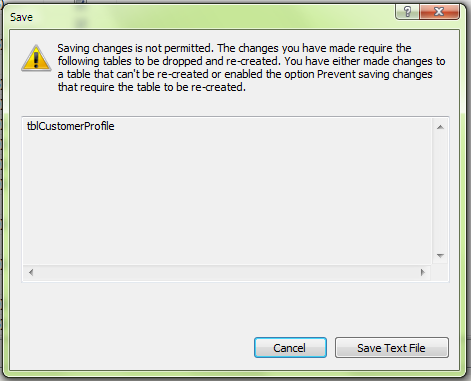
You upsize your tables up to the SQL Server but you used some BIT fields and/or you want to make some other table changes.  So, you navigate to the first table and uncheck the *Allow Nulls* for your BIT field and make your other adjustments and you go to Save.  Instead of the table saving you get…

SavingChanges

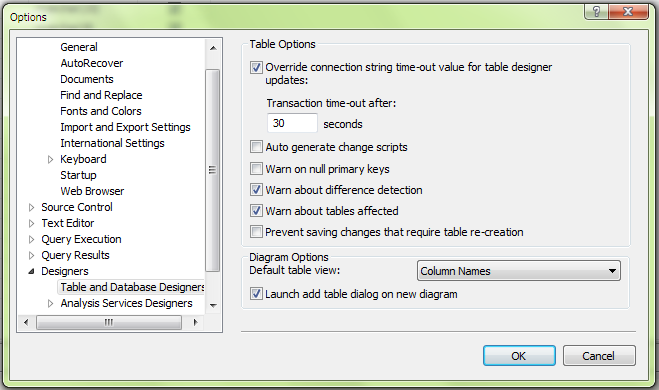
At first, you think you did it wrong so you try again only to get the above.  Well, that’s not going to work!  Don’t panic, there’s a quick and easy fix…  You do not have to close the table you just made the adjustments to.  Just go to Tools > Options > Designers > Table and Database Designers and uncheck *Prevent saving changes that require table re-creation* and click *OK*  Now, you can return to your table and click *Save* with no more issues.

SQLServerOptions

Loading

Circular Reference (well, kind of)…

You sat down to build your database and things were going great.  You made a table for Members and one for Members Contacts.  Only you now realize that the Members Contacts can also be Members.  At first you think… that will be okay.  But then you go to build your forms and realize this is a problem.  If you create a UNION query to show all the Members, you can’t edit the information AND you notice that some Member’s ID is the same as some Member Contacts ID.

This is when you need to think outside the box.  You can store all your Members, Company’s, Contacts and Individuals, in the same table and still keep track of Member’s Contacts which will make querying much easier.  But let’s be clear, this is the exception to the rule, not the rule.  Normally, I would recommend a table for Company’s and a seperate table for Contacts.  However, we all know in the real world the *standard* does not always apply!

For this example we’ll use the table as outlined below (To see the complete Data Model and download the Sample Database, click here)…

tblMembers
mActive
mMemberID (PK)
mRegistrationID
mAttachedTo (circular reference to Member ID in this table)
mCompanyName
mRegistrationID
mTitle
mFirstName
mLastName
etc…

In the table we’ll enter…

tblComplaints

Figure 1

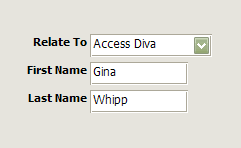
As you can see Access Diva (Company) has a MemberID of 1.  Gina Whipp, who works for Access Diva but is also a Member has a MemberID of 2.  In order to *relate* Gina to the Company in the mAttachedTo field you would enter a 1 or, since this would be on a Form with a Combo Box to select from, you would select Access Diva (Figure 2).

MemberContacts

Figure 2

The RowSource for the Combo Box in Figure 2 is…

SELECT tblMembers.mMemberID, tblMembers.mCompanyName FROM tblMembers WHERE (((tblMembers.mAttachedTo) Is Null));

You can either build one Form to enter Members OR you could build a form that has a Main Form for Company’s and Subform for Company Contacts.  Using the Main Form/Subform scenario you could use the mMemberTypeID or the mRegistrationID to identify which Contacts are also Members.  To seperate the two is easy… Take a look at the following two queries…

Companies…

SELECT tblMembers.mMemberID, tblMembers.mCompanyName, tblMembers.mFirstName, tblMembers.mLastName
FROM tblMembers
WHERE (((tblMembers.mAttachedTo) Is Null));

Contacts/Individuals…

SELECT tblMembers.mMemberID, tblMembers.mCompanyName, tblMembers.mFirstName, tblMembers.mLastName
FROM tblMembers
WHERE (((tblMembers.mAttachedTo) Is Not Null));

Download the Sample Database here…  Complaints.zip

Loading